 BACK TO PHOTOSHOP TRAINING COURSES
Photoshop Training Course Info...
Course Duration: 2 Days | Class Time: 9am - 4:30pm | Class Size: 6 Students Max
Training Room Location: Level 1, Opposite Reg. Hosp Nastech Sunyani B/A R.
Course Materials: As part of the course you will receive many useful resources and learning links to compliment your training and help you stay on track after your course.
Certificates: All students receive a certificate of achievement on completion of their course.
After Course Support: On completion of your course you will be eligible for free email and phone support, to aid you in the development of your new skills.
FREE Course Resit: We offer you the chance to come back in the future and resit your course for FREE, so if you want to polish your skills further or just recap on a few things this is a great option.
What you need to bring: Nothing. We supply your choice of MAC or PC computer for you to use with all software already installed and have note pads, pens etc in the training room. If you think it would be beneficial to bring some samples of your work that would be great but not essential.
Cost: GH¢ ???+GST
About our Photoshop Training Course
Our Adobe Photoshop training course has been designed to give you a complete overview of Photoshop getting you working effectively fast. This Photoshop course is very popular as we cover all aspects of everyday image editing, whether your wanting to design a flyer or poster, brighten an image, fix a colour issue, remove an unwanted object, create a collage of your images, cut out and replace a background or apply creative effects to an image. If you like having fun while you learn this course is definitely for you. You can even bring your own images along and your trainer will help you learn Photoshop using your photos.
This Photoshop course has been developed to provide you with skills to create and edit a wide variety of images for both print and web based media. Our course is suitable for anyone who uses Photoshop in the workplace or for private use including, marketing and sales professionals, graphic designers and photographers.
This Photoshop training course is very thorough, we want you to leave the course feeling confident that you can now create and enhance your own images with ease and control. With this in mind we offer you the chance to come back in the future and resit your course for FREE, so if you want to polish your skills further or just recap on a few things this is a great option. We also offer free after course support via phone or email, so if you get stuck with anything or have an urgent question we are here to help.
COURSE DATES - SYD |
MAY |
JUN |
JUL |
AUG |
SEP |
OCT |
|---|---|---|---|---|---|---|
17-18 21-22 28-29 |
14-15 27-28 |
16-17 |
2-3 13-14 29-30 |
10-11 27-28 |
8-9 23-24 |
|
9-10 |
18-19 |
12-13 |
13-14 |
3-4 |
11-12 |
|
Photoshop One-On-One |
Numerous date available each week, please call |
|||||
Photoshop Mastery |
Choose your courses from any of the above dates |
|||||
Photoshop On-Site |
Please call to arrange suitable on-site training dates |
|||||
Who should attend this Photoshop course?
- Beginners with no or little Photoshop experience
- Self taught Photoshop users
- Photoshop users who have never received professional Photoshop training
- Graphic Designers
- Digital artists
- Prepress / Mac Operators
- Professional and Amateur photographers
- Sales and Marketing staff working with print and web based media
- Students and school teachers
- Office administration staff
Things you will do and skills you will gain by attending...
- Learn how to make sense of Photoshop in an easy to understand format
- Learn to enhance image colour, remove unwanted objects, create collages
- Develop effective image enhancement skills
- Get images looking their best by developing colour correction skills
- Develop retouching skills
- Learn how to improve your workflow and work fast
- Understand layers and how to work on your image non-destructively
Course Outline
Below you will find a comprehensive list of all the main topics covered throughout your training. Don't worry, we know it looks like a lot but our courses have been designed to allow us to get through it all with ease.
Finding your way around
Understanding the Interface
Working with menus
The applications bar
Working with tools
Working with panels
Where to find missing panels
Using workspaces
Resetting a workspace
Saving a workspace
Viewing multiple images
Toggling multiple images
Using the colour picker
Working with screen modes
Hiding panels
Troubleshooting shortcuts
Undo's and History
Taking advantage of history
Setting history preferences
Using the history panel
Multiple undo and redo
Reverting an image
Before and after preview
Understanding Adobe Bridge
Understanding the Bridge
Navigating folders
Viewing images and folders
Resizing images
Viewing images full screen
Selecting files
Opening files
Workspaces
Important preferences
Adding favourites
Using filters
Zoom & Navigation Techniques
Working with the zoom tool
Working with the hand tool
Zoom and pan shortcuts
Quickly isolate an area
Fit in window
View image at actual pixels
Mastering Image Size & Resolution
Understanding image dimensions
Understanding pixel dimensions
Understanding image resolution
Working with image size
Understanding Image Colour
Understanding image colour modes
Working with RGB
Working with CMYK
Comparing RGB and CMYK
Understanding colour workflow
Understanding and File Formats
Best file formats for print
Best file formats for web
Working with PSD Tifs and Jpegs
Understanding Jpeg compression
Saving PSDs Tifs and Jpegs
Understanding Gif and Png formats
Saving images for the web
Cropping and Straightening
Using the crop tool
The rule of thirds
Extending backgrounds
Never deleting pixels
Using canvas size to extend
Straightening your images
Correcting perspective distortion
Transformations and Resizing
Free transform
Rotating images
Scaling images
Distorting images
Skewing images
Resizing images the smart way
Creating Image Collages
Using photoshop for layout design
Tips for working with lots of layers
Creating images collages
Combining multiple images
Making it all look real / believable
.
Working with Layers
Making sense of layers
Adding a layer
Changing stacking order
Duplicating layers
Deleting layers
Hiding layers
Locking layers
Merging layers
Merge down
Flatten layers
Layer Opacity
Layer blending modes
Understanding Layer Masks
Understanding layer masks
Taking advantage of masks
Adding a layer mask
Brushing on a mask
Brushing techniques
Inverting layer masks
Refine mask
Powerful Selection Techniques
Understanding selections
Basic selection tools
Selection tool myths
Add and subtract options
Deselecting selections
Inverting selections
Quick selection tool
Colour range
Painting with Brushes
Resizing a brush
Changing brush hardness
Saving brush presets
Understanding brush spacing
Hiding your brush outline
Understanding Colour Correction
Understanding colour correction
RGB vs CMYK
Common colour problems
The right approach
Using the adjustments menu
The advantage of adjustment layers
Masking colour adjustments
Removing Unwanted Objects
Retouching myths
Understanding the retouching tools
Using Spot healing
Understanding healing
Removing with patch
Removing objects by cloning
Changing the Colour of Objects
Object Removal
Extending Backgrounds
Crop vs canvas size
Working with Type
Understanding Photoshop text
Creating point type
Creating area type
Selecting text
Deselecting text
Understanding text layers
Deleting text
Character formatting
Paragraph formatting
Warping text
Applying layer styles
Creative Filters and Effects
Understanding filters
Understanding layer styles
Applying filters
Applying effects
Applying layer styles
Copying filters and effects
Removing filters and effects
Working with Photomerge
Understanding photomerge
Merging multiple images quickly
Using Photomerge
Photomerge options
Using align layers
Using merge layers
Saving and Output
Saving PSDs Tifs and Jpegs
Saving Gif and Png formats
Saving images for the web
Saving images for Print
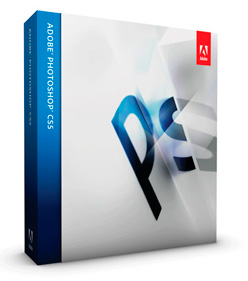
Our Photoshop training is perfect for anyone looking to work with images for either print or web based media. This Adobe Photoshop course is great place to start and is very broad covering all the essentials for anyone who wants to work like a pro creating eye catching Photoshop work that stands out.
Photoshop Advanced
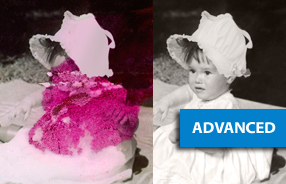
Want to take the next step? Our Photoshop advanced training will to take you to the next level. Photoshop includes many advanced features that make image editing more efficient giving you greater control. This Photoshop Advanced course is ideal for those serious about image editing.
Course Duration: 2 Days | 9am - 4:30pm
Cost: GH¢ ??? +GST